
With Stylo, you can place QR codes and barcodes directly into your advertisement. You simply type in where the code should lead, for example, your website. Stylo generates the code itself, in the correct size and ready for printing.
What codes are for
A printed advertisement has no clickable link. A QR code fills this gap: The reader holds their phone camera over it and immediately lands on your website, calls you, or sends you a message. They don't have to type anything.
What codes bring you:
- From paper directly to the web. Readers come to your offer, your menu, or your registration form with a glance of the camera.
- No typos. Long addresses, phone numbers, or contact details arrive exactly as you entered them.
- No expertise required. You don't need to know anything about codes. Size, error correction, and print quality are handled by Stylo or the template.
- Always sharp. The code is not an inserted image file but is drawn. It remains sharp at any size, in the editor as well as in the finished PDF.
- Clickable online. In an online advertisement, the code additionally serves as a link: Anyone who sees it on the screen simply clicks on it.
- Barcodes for products. A barcode with an article number (EAN) can be scanned at the checkout, for example, in a product advertisement or on a voucher.
Codes live in a code field. This is a rectangle in the advertisement that shows a code instead of an image. Usually, the designer of your template has already created the field, and you just fill it in.
Typical examples:
- A bakery includes a QR code in its weekly advertisement that links to the Sunday offers page.
- A craft business uses a QR code that directly dials the phone number when scanned.
- A realtor uses a contact card as a QR code: Anyone who scans it saves the name, phone number, and email with one tap into their contacts.
- A retailer displays the barcode with the article number in their product advertisement.
Part 1: Filling a code
This part is for anyone who wants to enter their code into a finished template.
Finding the code field
You can recognize an empty code field by a light blue area with a QR symbol and the text “Add QR code” (for barcodes “Add article number” or “Add barcode”). You will only see this area in the editor; it will not be printed.
| What you do | What happens |
|---|---|
| Click on the field | If the field is fixed in place in the template, the input window opens immediately. Otherwise, the field is selected. |
| Double-click on the field | always opens the input window. |
| right-click, then Change content … | also opens the input window. |
The input window
The window asks: “Where should the QR code lead?”
- Select, if offered, the type of content, for example, Website, Phone, or Email. If the template only allows one type, there is no selection, and you will see the input field immediately.
- Type in your content. A gray example text in the field shows what is meant.
- As you type, the code appears in the advertisement, exactly where it will be printed.
- Under the field, it states where the code leads, for example, “Leads to https://baeckerei-mueller.de”.
- Click on Done or press the Enter key.
Esc closes the window and restores the previous state. Remove clears the field again.
Test: Hold your phone camera over the code in the advertisement on the screen. For a website, there is also the button Open link, which shows the page in a new window.
The types of content
| Type | What you type | What happens when scanning |
|---|---|---|
| Website | baeckerei-mueller.de/sonntag |
The page opens in the browser. https:// is added automatically by Stylo. |
| Phone | 030 1234567 |
The phone offers to dial the number. The country code is added by Stylo. |
info@baeckerei-mueller.de |
A new email to this address opens. | |
0170 1234567 |
A WhatsApp chat with this number opens. | |
| Contact card | Name, company, phone, email, website, address (only the name is required) | You can directly add it to your contacts. |
| Free text | any text | The phone displays the text. Nothing opens. |
Spaces, slashes, or parentheses in phone numbers do not interfere; Stylo cleans them up. The types you see are determined by the template.
Example Bakery:
- Click on the “Add QR code” field.
- Select Website.
- Type
baeckerei-mueller.de/sonntag. - Under the field, it states “Leads to https://baeckerei-mueller.de/sonntag”, and the finished code appears in the advertisement.
- Click on Done.
Example Contact Card:
Select Contact card. Instead of one field, you will now see several stacked. Enter your name and everything else your customers should receive, such as company, phone, and email. Empty fields will not be included in the code.
If something is wrong
Stylo tells you in a sentence below the input field what is missing. As long as the input does not fit, the previous code remains in the advertisement. This way, no code that leads to nowhere will ever be printed.
| Message | What to do |
|---|---|
| “The ending is missing, e.g., .de” | The address needs an ending like .de or .com. |
| “An address contains no spaces.” | Remove the spaces from the website address. |
| “Please include the area code, e.g., 030 1234567” | Type the phone number with the area code. |
| “That doesn't look like an email address yet.” | Check the @ and the ending. |
| “Please enter a name.” | A contact card needs at least one name. |
| “This is too long for this space. Please shorten it.” | The longer the content, the finer the code becomes, and the field is too small for that. Use a shorter address, for example, the homepage instead of a deep subpage. |
If the code uses a value from the advertisement
Some templates pull the content of the code from the text of the advertisement, for example, from the website address that appears at the bottom of the advertisement. Then you will not see an input field in the input window, but the sentence “The code uses the value … from the advertisement.”
In this case, simply change the address in the text. The code will change automatically as well. The button Go to text location takes you directly there.
Example: At the bottom of the advertisement, it says “www.autohaus-schmidt.de”. You change the text to “www.autohaus-schmidt.de/ action”. The QR code now also leads to the action page. Both always match.
Filling a barcode with article number
In a barcode field, the window asks for your article number (EAN). The number is located under the barcode on your packaging.
- An EAN-13 has 13 digits. The first 12 are sufficient; Stylo calculates the last digit (the check digit) itself and tells you: “Check digit 1 added: …”.
- If you type all 13 digits and the last one is incorrect, Stylo reports: “The number is incorrect. Please check the last digit.” Usually, one digit is mistyped.
- You may type spaces and hyphens.
Under the bars, the number is also displayed in readable text, just like on any packaging.
Part 2: Creating and setting up code fields
This part is for designers who build templates. Whether you are allowed to create and set up code fields depends on the rights of your user group.
Creating a code field
| Path | How to do it |
|---|---|
| Toolbar | Open the shapes menu, select the tool QR Code Field or Barcode Field in the Code section, and draw the field on the page. |
| Existing rectangle | Right-click on the rectangle, then Add QR Code. |
| Search command | Ctrl+K (Mac: ⌘K), then type “QR” |
A QR code field is created as a square, with a white area. A barcode field gets the standard size of an EAN-13 barcode (about 37 × 26 mm). After that, the Code tab opens.
A code field remains a normal rectangle: You can move it, rotate it, add a border, layer it, group it, and copy it. The area of the rectangle is the light background of the code.
The “Code” tab: What the customer can do
You can access the tab via the context menu (Code settings …) or the properties dialog.
| Setting | Meaning |
|---|---|
| Type of code | QR code or a barcode (EAN-13, EAN-8, Code 128). |
| Types of content | Which types the customer is allowed to choose, for example, only “Website”. If only one type is checked, the customer sees no selection. |
| Content comes from | from the customer's input or from a variable in the text of the advertisement. |
| Text in the empty field | what is written in the empty field, for example, “Your website here”. |
| Empty field in output | What is printed if the customer does not enter anything: Omit (the field is completely missing) or Show area and border. |
| Test content | an example content with which you can test the template. |
Tips:
- Only offer what is really needed. “Only website” is the best choice for most templates, as the customer then has nothing to decide.
- Free text usually does not trigger anything when scanned. The tab also points this out.
- A contact card is long and needs a larger field. The tab specifies the minimum size.
- In a barcode, the customer enters their article number for EAN, and for Code 128, free text (letters without umlauts, digits, and common characters).
Example template with variable: Your template has the variable “Website” at the bottom, which the customer fills in. Set Content comes from › Variable in the code field and select “Website”. The customer only fills in the variable, and text and code always match. If the variable is missing, create it with New variable ….
The “Code Print” tab: Appearance and print quality
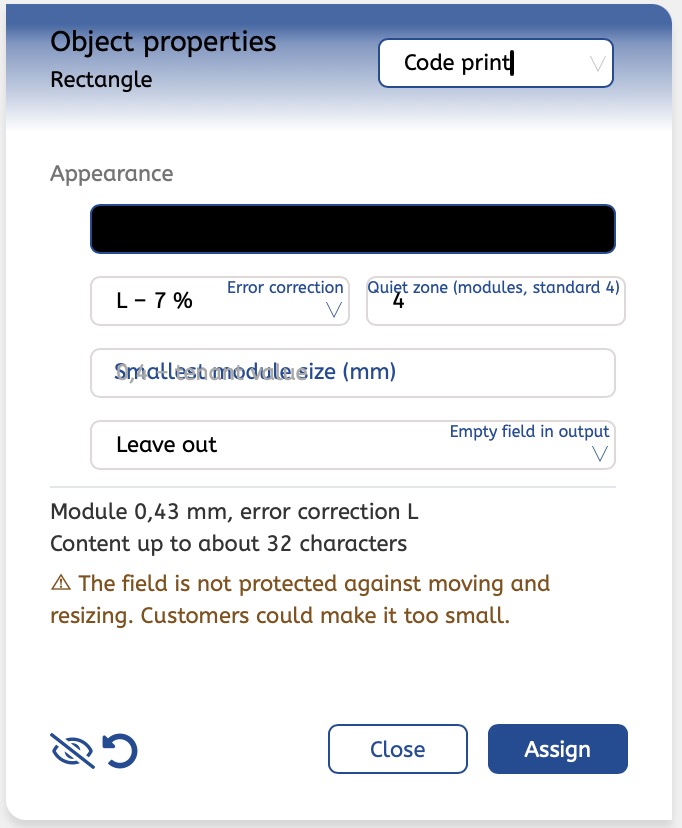
| Setting | Meaning |
|---|---|
| Color | Color of the dark dots or bars. The default is black. |
| Error correction | How much damage the code can withstand. Automatic selects the strongest level that fits in the field. It’s best to leave it like that. |
| Smallest module size | How small a single box of the code can be while still being readable when printed. If left blank, the value of your house applies, often 0.4 mm. |
| Quiet zone | the free margin around the code, measured in boxes. The standard requires 4. Without enough margin, some cameras may not recognize the code. |
| Clear text under the bars | only for barcodes: the number in readable text under the bars. |
Below, the tab shows how long a content in this field may be at most, such as “Addresses up to about 45 characters”. This helps in determining the field size.
Warnings for designers
Stylo checks the code field and warns you if the code would be difficult to scan later. The warnings appear in the tab and as a short message. They do not prohibit anything, and your customers will never see them.
| Warning | What you can do |
|---|---|
| The field is too small | Make the field larger. |
| Too little contrast between code and area | Dark code on a light area, best black on white. |
| The code is lighter than the area | Many cameras do not read light codes on dark backgrounds. Swap the colors. |
| The area is transparent, a gradient, or an image | Give the field a solid, light area. |
| Another object or effect lies on the code | Keep the code and its border clear. |
| The field is not protected against moving and resizing | Protect position and size; otherwise, customers might resize the field too small. A protected field also opens the input window with a click for the customer. |
| A barcode is too narrow, too wide, or too low | Maintain the standard size (80 to 200% is allowed). |
Example: You place a QR code on a dark blue area and color it white. Stylo warns: “The code is lighter than the area.” Better: white area, dark blue code. It looks just as good and is read by every camera.
Protection of the template
- If the content of the field is protected, the customer cannot change the code.
- If a group is locked, the code fields within it are also protected. If only position and size are protected, a click on a code field in a group directly opens the input window.
Codes in animations and with 3D rotation
- Animation: Code fields can be animated, for example, to fade in or move. Stylo warns if the animation makes the code too small or if it remains in motion until the end, as a moving code is hardly scannable. A barcode must maintain its aspect ratio.
- 3D rotation: Shapes with code only rotate flat in the plane. If tilted, the code can no longer be scanned reliably.
Online advertisements
In an online advertisement, the code additionally serves as a link when exported. Anyone viewing the advertisement on the screen does not need to pull out their phone first but simply clicks on the code. This applies to website, phone, email, and WhatsApp. In the editor itself, the code is not a link.
Frequently asked questions
Do I need to check the code again before printing? A quick test is always worthwhile: Hold your phone camera over the code on the screen. If it leads where it should, everything is fine.
Why has the code become so fine? The more content, the more boxes the code needs. A short address results in a coarse, easily readable code. Use the homepage or a short subpage whenever possible.
Can I place a logo in the middle of the QR code? No. Also, do not place any other objects on the code, as it may not be readable anymore.
I haven't entered anything. Will an empty box be printed now? Normally not: An empty code field is completely missing in the output. The template can set this differently.
I don't see an input field, only a sentence about a value from the advertisement. The code pulls its content from the text of the advertisement. Change the text, and the code will change with it.
Can everything be undone? Yes. Every input from opening the window to “Done” is a step that Ctrl+Z (Mac: ⌘Z) undoes.
Comments
0 comments
Please sign in to leave a comment.